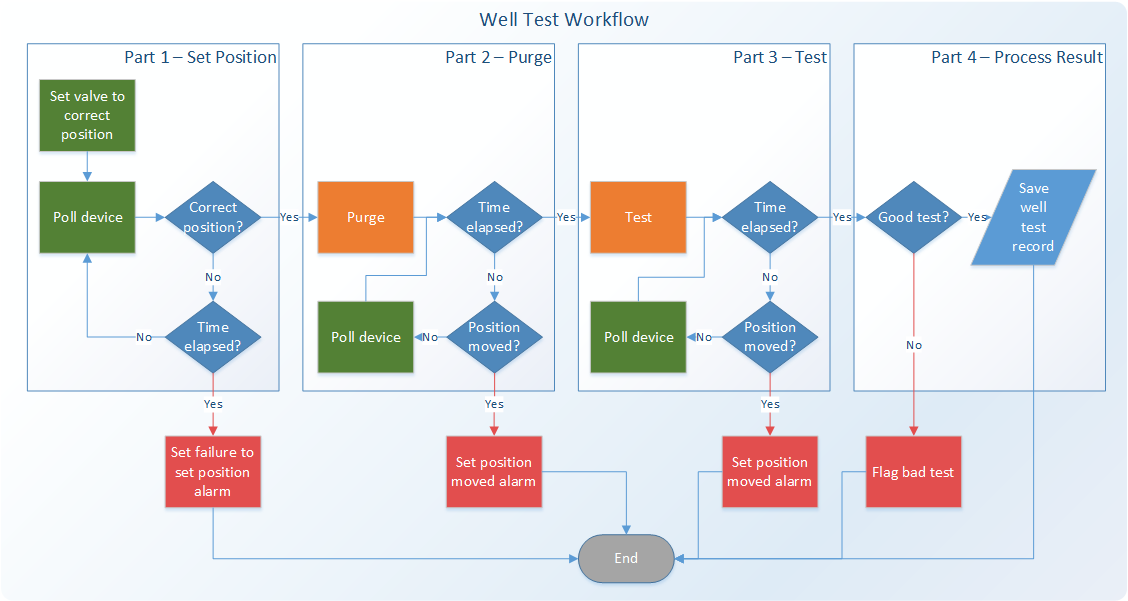
The following flow chart represents an example workflow for testing a specific well. The workflow consists of four distinct parts and the actions required to accomplish each part of the workflow are described in this topic. The logical blocks represented in this diagram correspond to sections in the configuration XML employed by the CygNet Well Test Module. The configuration XML is created via the CygNet.API.WellTest.Controls assembly and a well test configuration screen in Canvas. See Configuring Well Test Using Canvas for more information.
Click the following image to see a sample well test workflow:
|
|
| Well Test Workflow Diagram |
See the following subsections for more information:
Each part of the workflow (and the steps within) described below includes reference links to the well test configuration control UI and the configuration XML where the actions types are described, and a sample block of XML code.
The actions in this part of the workflow involve setting the device to the correct position. In this part, a command is sent to the device to set the position, then we poll the device until the position is right. This assumes that the writing of the desired position and the actual position are two separate registers.
Issue a set point to let the user know where we are in the process via the Set Point action type. This action will issue a set point on the "Separator" facility (as directed by the "relativeFacilityLink" attribute) with a udc of "MSG". The value is a hard-coded value of "Set Position".
XML Example
|
<Action type="SetPoint" udc="MSG" relativeFacilityLink="Separator" valueType="Text" attribute="" value="Set Position" /> |
Note: The "Separator" facility is specified in the "tag" attribute of the <Header> element of the XML configuration.
References
| UI Configuration | XML Configuration |
|---|---|
Issue the appropriate UIS command to the device with the UIS Command action type. This action will issue a command on the "Separator" facility (as directed by the "relativeFacilityLink" attribute) with a command name of "SETMSVPOS1". The UIS command will provide status to the "SYCMDSTAT" UDC, also on the "Separator" facility. This action isn't configured for Parameters in this example, but the option exists to do so.
XML Example
|
<Action type="UisCommand" command="SETMSVPOS1" relativeFacilityLink="Separator" statusUDC="SYCMDSTAT"> <Parameters /> </Action> |
References
| UI Configuration | XML Configuration |
|---|---|
Wait for the actual position to match the desired position. We are using the Test action type for this, as it is a generic action type used to pause the process. In this case, we are going to wait for 60 seconds (timeoutValue="60"). Every 5 seconds (sleeptime="5000") we are going to perform the Sleep Time Action and evaluate a condition. The condition is defined by the "udc", "operator", "value", and "conditionRelativeFacilityLink" attributes.
In this case, we are going to evaluate a point on the "Separator" facility with a udc of "POMSV". If that point is equal to "1", then we are going to perform the Condition action (ExitOnTagValueActions) (of which there are none defined here) and then exit the action.
After we issue the UIS command, we are going to wait for the actual position to go to "1". We are going to wait a total of 60 seconds for this to happen. Every 5 seconds, we are going to poll the device and see if the position is equal to "1". If it does, then we exit the condition. After 60 seconds we exit the action regardless of the condition.
XML Example
|
<Action type="Test" timeoutValue="60" timeoutValueType="Self" timeoutValueUpdate="" timeoutRelativeFacilityLink="" udc="POMSV" operator="=" value="1" conditionRelativeFacilityLink="Separator" sleeptime="5000"> <SleepTimerActions> <Action type="UisCommand" command="POLL" relativeFacilityLink="Separator" statusUDC="SYCMDSTAT"> <Parameters /> </Action> </SleepTimerActions> <ExitOnTagValueActions> </ExitOnTagValueActions> </Action> |
References
| UI Configuration | XML Configuration |
|---|---|
In Step 3, we waited for the position to move to the desired port; however, there is a chance that it did happen, and we timed out. So, we need to make sure the position is correct. Here we are using a Point Value Compare action type to check the position point against a hard-coded value. If the position is not equal to "1", then we are going to exit the well test. The "value1", "value1type", and "value1relativeFacilityLink" attributes are compared using the "operator" attribute with the "value2", "value2type", and "value2relativeFacilityLink" attributes.
In this case, if the "POMSV" point on the "Separator" facility is not equal to "1", then we are going post a value to the "MSG" point on the "Separator" facility saying "Position Not Set" and then exit the current well test.
XML Example
|
<Action type="PointValueCompare" operator="<>" value1="POMSV" value1type="UDC" value1relativeFacilityLink="Separator" value2="1" value2type="SELF" value2relativeFacilityLink=""> <TrueAction> <Action type="Exit" udc="MSG" relativeFacilityLink="Separator" valueType="Text" attribute="" value="Position Not Set" /> </TrueAction> <FalseAction> </FalseAction> </Action> |
References
| UI Configuration | XML Configuration |
|---|---|
The actions in this part of the workflow involve the purging process for the well. This part is simple in that all we are doing is waiting for a period of time to expire.
This is like Step 1 of Part 1 where we are going to issue a Set Point action to let the user know where in the process we are. This action will issue a set point on the "Separator" facility (as directed by the "relativeFacilityLink" attribute) with a udc of "MSG". The value is a hard-coded value of "Purging".
XML Example
|
<Action type="SetPoint" udc="MSG" relativeFacilityLink="Separator" valueType="Text" attribute="" value="Purging"" /> |
References
| UI Configuration | XML Configuration |
|---|---|
In this step we need to wait for a period and as such, we are going to use the Test action type. The Test action type can be configured to wait a specific amount of time, as in Step 3 of Part 1, or we can specify a UDC that stores how long we should wait. In this step we are going to use the UDC method.
The "timeoutValue" attribute is specifying a "UDC" on the "Well" facility ("timeoutRelativeFacilityLink" is empty and this action is defined at a Well/Position level). The "timeoutValueType" attribute of "UDC" tells the "Test" action that we are going to get the timeout from a point. In this case, the point is on the "Well" facility with a UDC of "TMWTPUR". So, this action will wait the number of seconds of that point value.
While we wait, every 5 seconds (sleeptime="5000") we are going to poll the device (using the actions defined in the Sleep Time Actions node). Also, every 5 seconds, we are going to check the position to make sure it didn't move. This is done with the "udc", "operator", "value", and "conditionRelativeFacilityLink" attributes. In this case, we're expecting the position to be "1" and if it's not, then we are going to perform the actions defined in the ExitOnTagValueActions node. The action defined there will issue a status of "Position Moved" and exit the current well test.
XML Example
|
<Action type="Test" timeoutValue="TMWTPUR" timeoutValueType="UDC" timeoutValueUpdate="False" timeoutRelativeFacilityLink="" udc="POMSV" operator="<>" value="1" conditionRelativeFacilityLink="Separator" sleeptime="5000" > <SleepTimerActions> <Action type="UisCommand" command="POLL" relativeFacilityLink="Separator" statusUDC="SYCMDSTAT"> <Parameters /> </Action> </SleepTimerActions> <ExitOnTagValueActions> <Action type="Exit" udc="MSG" relativeFacilityLink="Separator" valueType="Text" attribute="" value="Position Moved" /> </ExitOnTagValueActions> </Action> |
Note: The "Well" facility is specified in the "tag" attribute of the <Well> element of the XML configuration.
References
| UI Configuration | XML Configuration |
|---|---|
The steps in this part of the workflow are very similar to the previous step. We are going to status the user and then wait for a period while making sure the position hasn't moved. The only difference in these steps will be in how we test to see if the position has moved.
This is like Step 1 of Part 2 where we are going to issue a Set Point to let the user know where in the process we are. This action will issue a set point on the "Separator" facility (as directed by the "relativeFacilityLink" attribute) with a "udc" of "MSG". The value is a hard-coded value of "Testing".
XML Example
|
<Action type="SetPoint" udc="MSG" relativeFacilityLink="Separator" valueType="Text" attribute="" value="Testing" /> |
References
| UI Configuration | XML Configuration |
|---|---|
This step is mostly the same as Step 2 of Part 2. We are going to wait for a period defined in the "timeoutValue" attribute (in this case "TMWTTGT"). However, we are not using the "udc", "value", and "conditionRelativeFacility" attributes to figure out if the position has moved. That is certainly a valid configuration here; however, in this case we are electing to use a Point Value Compare action type as part of the Sleep Time Actions to perform that function. This leaves the action condition available for other purposes. For example, the condition could be set up to allow an external process (such as ForeSite) to cut the test time short for any reason.
This introduces another attribute that is part of the Test action type. In this example, the "timeoutValueUpdate" attribute is set to "true" here. So, for example, if we had a condition configuration and that condition was met after four hours of an eight-hour test, then we will update the "TMWTTGT" point to four hours (converted to seconds). The next time we test this well, it will start out with a test time of four hours, instead of eight.
The last attribute we are using here is the "timeoutActualUdc" attribute. This attribute specifies the UDC to use to post a running count of how long we have been in this action. Every 5 seconds (sleeptime="5000"), we will update this value to reflect how long we have been in this condition. This could also have been configured in the Purge step.
XML Example
|
<Action type="Test" timeoutValue="TMWTTGT" timeoutValueType="UDC" timeoutValueUpdate="true" timeoutRelativeFacilityLink="" timeoutActualUdc="TMWTACT" udc="" operator="" value="" conditionRelativeFacilityLink="" sleeptime="5000"> <SleepTimerActions> <Action type="UisCommand" command="POLL" relativeFacilityLink="Separator" statusUDC="SYCMDSTAT" /> <Action type="PointValueCompare" operator="<>" value1="POMSV" value1type="UDC" value1relativeFacilityLink="Separator" value2="1" value2type="SELF" value2relativeFacilityLink=""> <TrueAction> <Action type="Exit" udc="MSG" relativeFacilityLink="Separator" valueType="Text" attribute="" value="Position Moved" /> </TrueAction> <FalseAction> </FalseAction> </Action> </SleepTimerActions> <ExitOnTagValueActions> </ExitOnTagValueActions> </Action> |
References
| UI Configuration | XML Configuration |
|---|---|
In this part of the workflow, we are going to process the well test result. Since the values for the well test record can come for different places depending on the field configuration, we need to script this part of the process. Any sort of unit manipulation, accumulator calculations, or any other logic needed to be performed to generate the proper values for a record must be scripted. If there isn't any requirement to manipulate the values prior to being stored in the well test record, there is a generic script that can be used to supply the necessary values for the record and the script will output the result in the proper format for the CygNet Well Test Module to store the record in the VHS.
This is like Step 1 of Part 2 where we are going to issue a Set Point to let the user know where in the process we are. This action will issue a set point on the "Separator" facility (as directed by the "relativeFacilityLink" attribute) with a "udc" of "MSG". The value is a hard-coded value of "Processing".
XML Example
|
<Action type="SetPoint" udc="MSG" relativeFacilityLink="Separator" valueType="Text" attribute="" value="Processing" /> |
References
| UI Configuration | XML Configuration |
|---|---|
In this step, we want to make sure we need to generate a well test record. There can be various conditions that must be met before we consider generating a record. In this example, we are performing a simple check to see if the actual runtime was greater than the minimum runtime. Both values come from points on the "Well" facility. A Point Value Compare action type is used to perform this check.
Here if the actual time (value1="TMWTACT") point value is greater than or equal (operator=">=") to the minimum required time (value2="TMWTMIN"), then we will perform the action specified in the True Action node. See Step 3 below for details on that action. If we don't meet the minimum time requirement, we exit out of the well test and provide a status value as to why.
XML Example
|
<Action type="PointValueCompare" operator=">=" value1="TMWTACT" value1type="UDC" value1relativeFacilityLink="" value2="TMWTMIN" value2type="UDC" value2relativeFacilityLink=""> <TrueAction> <!—see next step --> </TrueAction> <FalseAction> <Action type="Exit" udc="MSG" relativeFacilityLink="Separator" valueType="Text" attribute="" value="Short test" /> </FalseAction> </Action> |
References
| UI Configuration | XML Configuration |
|---|---|
This is a continuation of the previous step. If we meet the minimum test time requirements, we are going to execute a VB script to gather the appropriate values needed for the well test record and provide those back to the CygNet Well Test Module. The Script action type is used for this purpose.
The VB script contains all the necessary logic to retrieve the point values for oil, water, gas, etc. from the devices containing the information and then perform any required data manipulation on those values. If these values are in a point and no data manipulation is necessary, then the provided generic script can be used to generate the required output.
In the following Script action type, we have a generic script file located in the BSS. The script will be executed with the configured parameters. There are six parameters that the script file will parse and then output the same values in a format that the CygNet Well Test Module understands. Once the VB script is finished and presents the output, it is parsed into an XML string and posted to the result point. The result UDC is defined in the <UdcConfiguration> element or can be overridden in the action using the "udc" attribute.
XML Example
|
<Action type="Script" script="C4PROD.BSSCAN\WELLTEST\ProcessCalculationsGeneric.vbs" source="BSS" udc="WELLTEST" relativeFacilityLink=""> <Parameters> <Parameter> <Part type="Text" value="OIL=" /> <Part type="PointValue" udc="ROIL" relativeFacilityLink="Separator" attribute="Value" /> </Parameter> <Parameter> <Part type="Text" value="WATER=" /> <Part type="PointValue" udc="RH2O" relativeFacilityLink="Separator" attribute="Value" /> </Parameter> <Parameter> <Part type="Text" value="GAS=" /> <Part type="PointValue" udc="RGAS" relativeFacilityLink="Separator" attribute="Value" /> </Parameter> <Parameter> <Part type="Text" value="DURATION=" /> <Part type="PointValue" udc="TMWTACT" relativeFacilityLink="" attribute="Value" /> </Parameter> <Parameter> <Part type="Text" value="FACILITYTAG=" /> <Part type="FacilityAttribute" relativeFacilityLink="" attribute="FacilityTag" /> </Parameter> <Parameter> <Part type="Text" value="TIMESTAMP=" /> <Part type="PointValue" udc="TMWTACT" relativeFacilityLink="" attribute="Timestamp" /> </Parameter> </Parameters> </Action> |
Let's look at the configuration at the first Parameter node. The parameter will concatenate all parts into a single string to present to the script file. The first parameter starts off with a simple string of "OIL=". The next part of the parameter will retrieve a point value from the "ROIL" UDC on the "Separator" facility. For example, if the value is 184.5, the parameter would start out as OIL=184.5.
In this example, we retrieve the oil, water, and gas values from the same "Separator" facility. If these come from different devices and facilities, the "relativeFacilityLink" attribute can be used to resolve to the appropriate point and UDC.
The duration, facility tag, and timestamp values come from the "Well" facility. All those values will be concatenated and passed into the script. The generic script then turns around and passes those same values back out in the appropriate format. From there, the XML record gets generated and posted to the VHS as a BLOB string.
References
| UI Configuration | XML Configuration |
|---|---|

|
|
|

